
How to Check Your IP Address & Why It Matters (2025 Guide)
- InInternet
- Read Time4 mins
Introduction
Ever wondered what your IP address is and why it matters? If you’ve ever struggled with network issues, set up remote work tools, or worried about online privacy, understanding your IP address is crucial. An IP address isn’t just a random set of numbers—it’s your unique identifier on the internet. Knowing how to check your IP address allows you to troubleshoot connection problems, secure your devices, and even manage access to sensitive online resources.
In this guide, we’ll show you easy methods to find your IP address on any device, explain the difference between public and private IPs, and reveal what your IP reveals about your location. You’ll also learn actionable tips to protect your digital footprint, making your online experience safer and smoother. By the end, you’ll not only be able to do an IP address lookup, but also understand why it’s a vital part of internet security in 2025.
1. What Is an IP Address and Why It Matters
Understanding the Basics
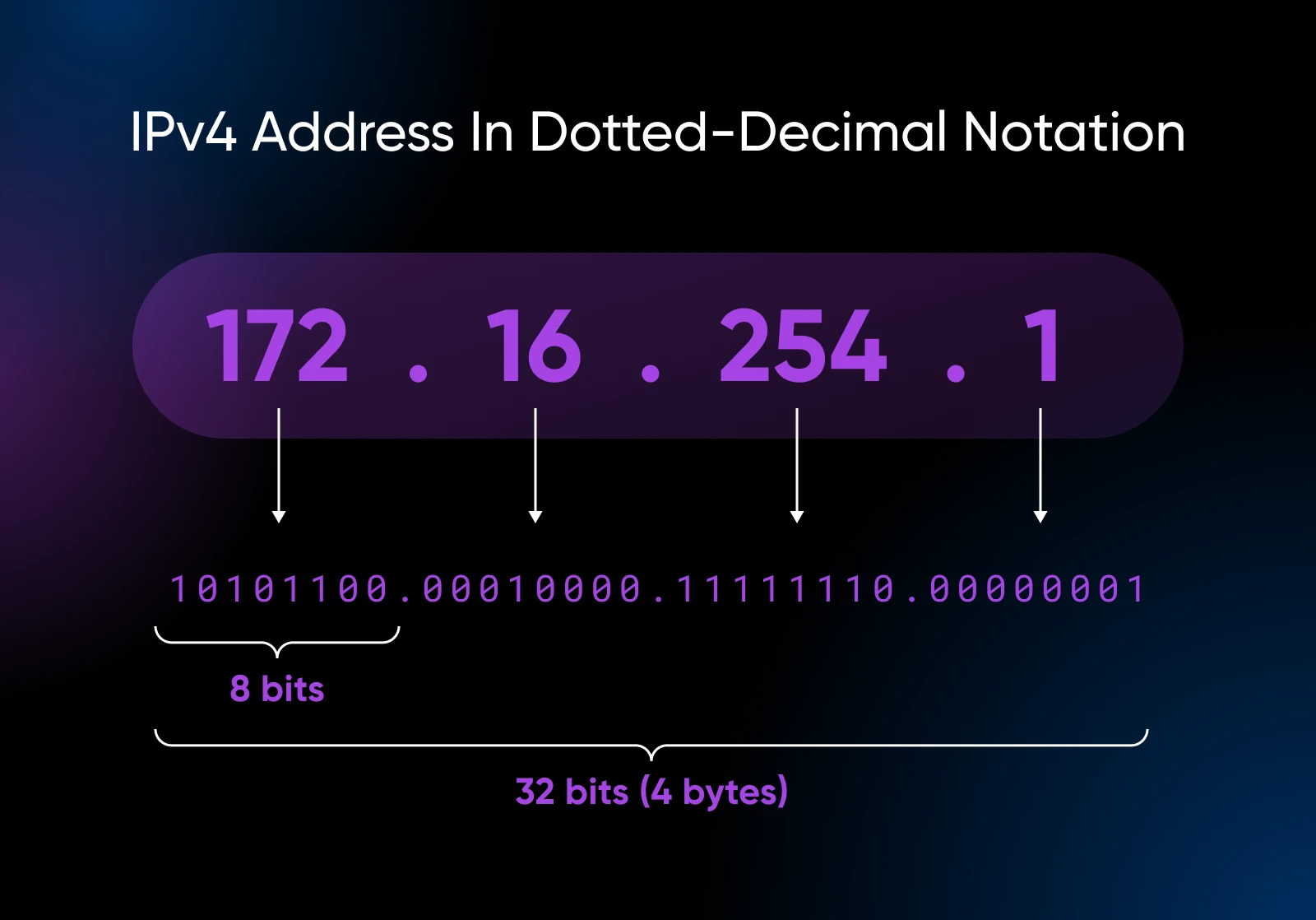
An IP (Internet Protocol) address is a unique number assigned to your device when you connect to the internet. Think of it as your device’s home address in the digital world.
- IPv4 vs IPv6: Most devices still use IPv4 (e.g., 192.168.1.1), but IPv6 (e.g., 2001:0db8:85a3::8a2e:0370:7334) is gradually replacing it to accommodate more devices.
- Public vs Private IP: Your public IP is visible on the internet, while private IPs are used within your home or office network.
Why Knowing Your IP Matters
- Troubleshooting connectivity problems
- Securing home networks and Wi-Fi routers
- Managing remote access for work
- Protecting your privacy online
Suggestion: How to Secure Your Home Wi-Fi Network in 2025
2. How to Check Your IP Address on Windows
Using Command Prompt
- Press Windows + R, type
cmd, and hit Enter. - Type
ipconfigand press Enter. - Look for IPv4 Address under your active network connection.
Using Settings
- Open Settings > Network & Internet.
- Select Wi-Fi or Ethernet, then click Properties.
- Scroll to IPv4 address to see your device’s private IP.
3. How to Find Your IP on Mac, iPhone, and Android
Mac
- Go to System Preferences > Network
- Select your active connection and click Advanced > TCP/IP
iPhone / iPad
- Open Settings > Wi-Fi
- Tap your network name and find your IP under IPV4 Address
Android
- Open Settings > Network & Internet > Wi-Fi
- Tap your network and view your IP address in the details section
4. How to Check Your Public IP Address Online
Sometimes you need to know your public IP—the one visible to websites and online services.
- Visit sites like WhatIsMyIP.com or IP Location
- Your public IP will be displayed instantly, along with approximate location and ISP info
Why Public IP Privacy Matters
- Hackers can target exposed IPs for cyberattacks
- Websites can track your location and browsing habits
- VPNs can mask your public IP for added privacy
5. Tools for IP Address Lookup and Management
- IP Location Services: Check your IP and approximate location
- Network Utilities: Ping, traceroute, and WHOIS for network troubleshooting
- VPN Services: Hide your IP for security and privacy
- Router Dashboards: Assign static IPs or block devices
Suggestion: Best VPNs for Privacy in 2025
6. Tips to Protect Your IP and Online Privacy
- Use a VPN: Encrypts your connection and hides your public IP
- Update Router Firmware: Protects against exploits targeting your network
- Limit IP Exposure: Avoid sharing your IP on public platforms
- Enable Firewalls: Adds an extra layer of security
Conclusion
Checking your IP address is simple but vital for network troubleshooting, remote work, and online privacy. Whether on a Windows PC, Mac, or mobile device, knowing both your private and public IP empowers you to secure your digital life.
Take the next step: use IP lookup tools, consider a VPN, and regularly review your network settings. By staying aware, you protect yourself from cyber threats and maintain greater control over your online presence.
FAQs
Q1. What is my IP address?
Your IP address is a unique identifier assigned to your device, used to communicate with other devices on the internet.
Q2. Can I change my IP address?
Yes, you can use a VPN, reboot your router, or contact your ISP for a new public IP assignment.
Q3. How do I find my IP address quickly?
Use built-in tools on Windows, Mac, Android, or iOS, or visit a trusted site like WhatIsMyIP.com.
Q4. Is it safe to share my IP address?
Generally, avoid sharing your public IP on forums or social media. Doing so can expose you to hacking attempts.
Q5. What is the difference between IPv4 and IPv6?
IPv4 is the older 32-bit format, while IPv6 is 128-bit, allowing more devices to connect to the internet securely.
About the Author
Anish is the founder of TechBoltX, sharing mobile gaming rewards, guides, and daily updates.
Tags
