
ByAnish
What Is My IP Address? How to Find and Understand Yours
What Is My IP Address? Understanding Your Digital Identity
Your IP address (Internet Protocol address) is a unique number assigned to your device when it connects to the internet. Think of it as your digital home address: it identifies your device and allows websites, apps, and services to communicate with it. Whether you’re browsing, gaming, or working remotely, understanding your IP address is essential for security, troubleshooting, and online privacy.
How to Find Your IP Address Quickly
There are several easy ways to locate your IP:
1. Use Online Tools
Websites like IP.me, WhatIsMyIPAddress.com, or ShowMyIP.com instantly detect your public IP and display your approximate location.
2. Search on Google
Type “what is my IP” into Google. Your public IP will appear at the top of the search results automatically.
3. Command-Line Tools
- Windows: Open Command Prompt and type
ipconfigto see your local IP. - Mac/Linux: Open Terminal and type
ifconfig.
Pro Tip: Your public IP shows your ISP and general location, while your private IP identifies your device within your home or office network.
Types of IP Addresses
Public vs Private
- Public IPs: Visible on the internet. Used to identify your network externally.
- Private IPs: Used within local networks (like 192.168.x.x) to connect multiple devices.
Static vs Dynamic
- Static IPs: Do not change over time, useful for servers or remote access.
- Dynamic IPs: Assigned automatically and may change every time you reconnect.
IPv4 vs IPv6
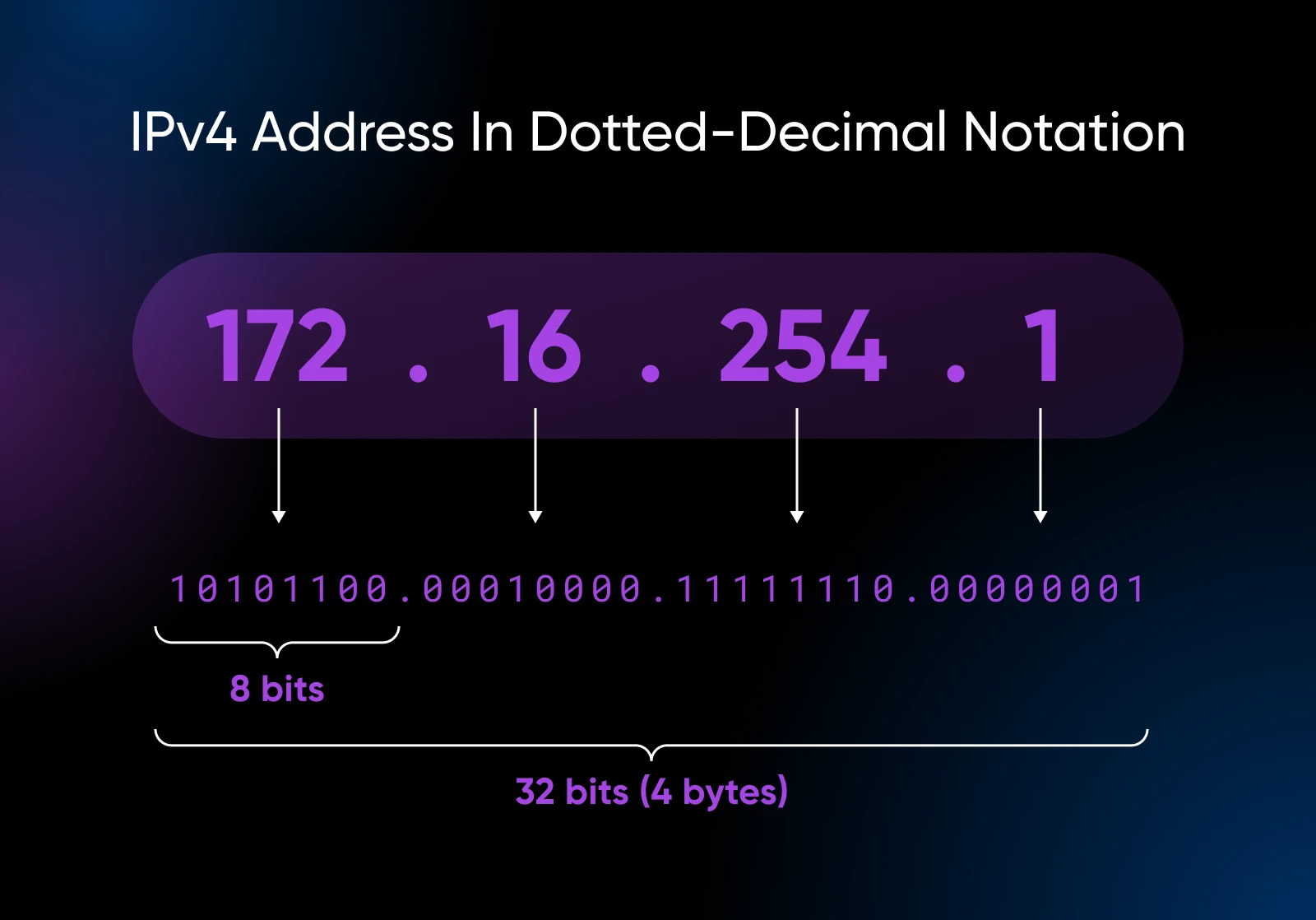
- IPv4: Traditional format (e.g., 192.168.1.1), limited to ~4 billion addresses.
- IPv6: Modern format (e.g., 2001:0db8::1), supports virtually unlimited devices.
Why Knowing Your IP Address Matters
Knowing your IP is useful for:
- Troubleshooting Network Issues: Identify connection problems or conflicting devices.
- Remote Access & Gaming: Connect to home networks or multiplayer servers.
- Privacy & Security: Prevent online tracking by using VPNs or proxies.
Security Tip: IP addresses can reveal your location and ISP. Consider using a VPN to mask your IP and encrypt your connection, especially on public Wi-Fi.
Step-by-Step: Check Your IP on Any Device
Windows 10/11:
- Press
Win + R, typecmd, and press Enter. - Type
ipconfigand find your IPv4 address under your network adapter.
Mac:
- Open Terminal (
Applications > Utilities > Terminal). - Type
ifconfigand locate your IP underen0oren1.
Android/iOS:
- Go to Settings > Wi-Fi > Network Info. Your IP will appear under the connected network.
Common Questions About IP Addresses
Q: Can my IP reveal my exact location?
A: No, it shows your general area (city, region), but not your home address.
Q: How can I hide my IP?
A: Use a VPN, proxy server, or Tor browser to anonymize your online activity.
Q: What’s the difference between IPv4 and IPv6?
A: IPv4 has fewer addresses and is widely used, while IPv6 supports billions more devices and is future-proof.
Q: How to Find Your IP Address Quickly?
A: Websites like IP.me, WhatIsMyIPAddress.com, or ShowMyIP.com instantly detect your public IP.
Final Thoughts
IP addresses are the backbone of the internet, connecting devices securely and efficiently. By knowing how to find, understand, and protect your IP, you can improve your network troubleshooting, maintain privacy, and stay safe online.
Remember: Always stay aware of your IP’s visibility, especially on public networks, and use privacy tools when needed.
About the Author
Anish is the founder of TechBoltX, sharing mobile gaming rewards, guides, and daily updates.